User Guide
Everything you need to master Plan&Multiply and the 3F Method
Last updated: March 2026
The 3F Method
The 3F Method is the heart of Plan&Multiply. It divides your budget into 3 simple zones:
Fixed (green) — Your recurring, non-negotiable expenses: rent, utilities, insurance, subscriptions.
Flexible (blue) — Your variable daily expenses: groceries, entertainment, restaurants, transport. These are expenses you control.
Future (amber) — Your savings and projects: holidays, emergency fund, home purchase. Money you set aside for tomorrow.
Conservative
50% Fixed / 30% Flexible / 20% Future
Ideal for beginners or tight budgets
Balanced
40% Fixed / 40% Flexible / 20% Future
For a good balance between spending and saving
Ambitious
40% Fixed / 30% Flexible / 30% Future
To accelerate your savings
Getting Started
The onboarding guides you through 5 steps to set up your budget in under 5 minutes:
1. Your profile — Student, Employee, Family, or Freelance. This personalizes suggestions.
2. Your income — Enter your income sources (salary, freelance, benefits). You can add multiple sources.
3. 3F Split — Choose a profile (Conservative, Balanced, Ambitious) or customize with sliders.
4. Your envelopes — Set up your variable expense categories: Groceries, Entertainment, Transport, etc.
5. Your savings goals — Define your goals: Holidays, Emergency Fund, Project...
A visual summary lets you review everything before confirming.
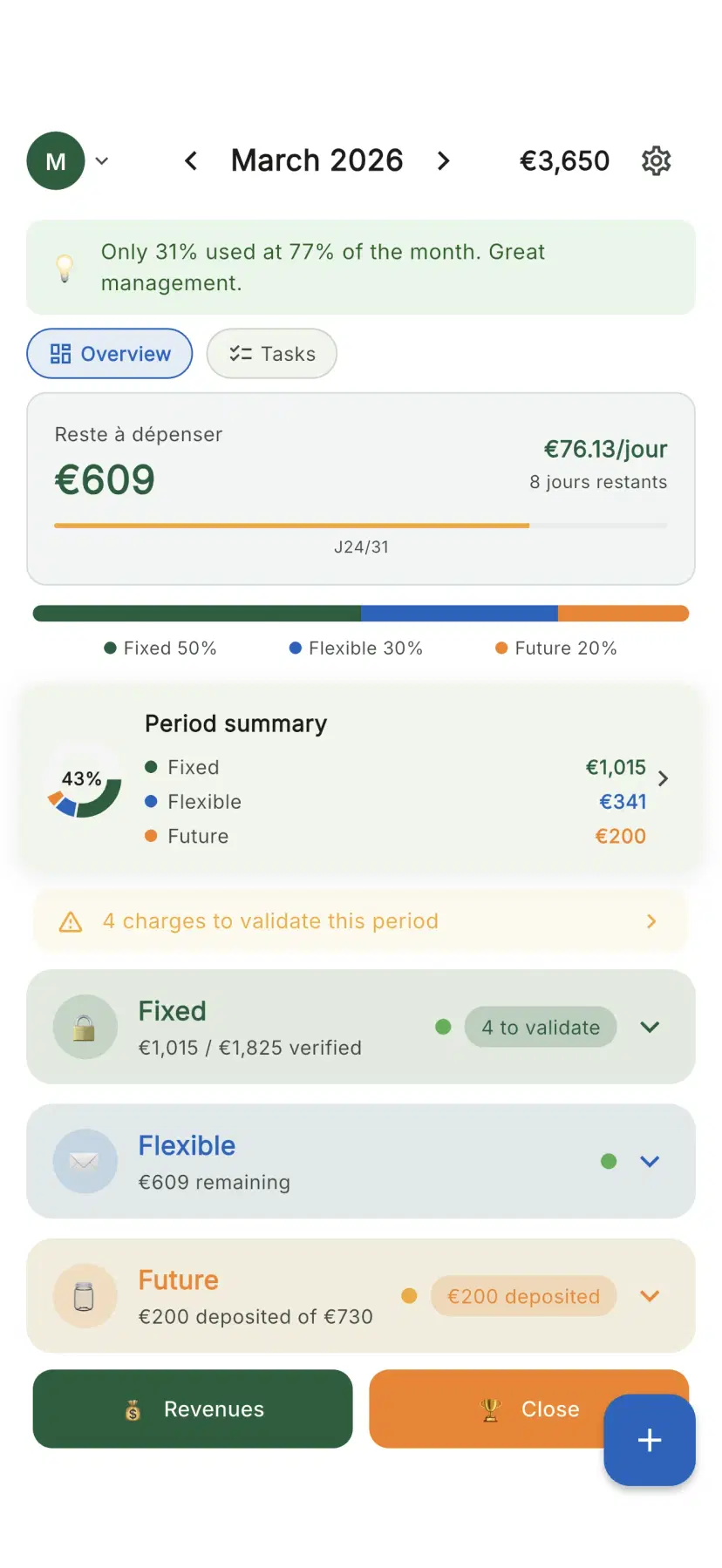
Plan&Multiply Dashboard with the 3F budget view
The Dashboard (Today)
The dashboard is your central screen. At the top you pick a mode: *Now*, *Future* or *Opportunities*. At the bottom, a tab bar: *Today*, *Daily*, *Fixed*, *Statement*.
The Today screen shows the essentials at a glance:
- Your real balance, "based on what you entered"
- Your next step — a targeted tip from Kim, your budget coach
- Pocket balance: what's left to allocate, and the Fixed / Daily / Goals split
- A "money left per day" marker
The + button: log an expense in 3 seconds.
Everything updates as you enter — no bank connection. At the start of the month the app helps you set your intentions; at month-end it guides you to close and carry over.
Main dashboard with the 3F budget view
Fixed — Recurring Expenses
The Fixed tab (Charges) manages your recurring expenses: rent, utilities, subscriptions, insurance.
In this tab: list of charges with verification checkbox, badge showing how many are verified.
Fixed Detail: total budget summary, complete list with category and frequency, add/edit/delete charges.
Occurrence system: recurring charges have templates and per-period occurrences, auto-generated at each period start.
Flexible — Budget Envelopes
The Daily tab (Quotidien) manages your variable expenses through envelopes.
In this tab: envelopes with progress bars that empty as you spend. Colors: green (>60%), amber (30-59%), orange (10-29%), red (<10%).
Envelope detail: animated illustration, remaining amount, EUR/day estimate, transaction history with auto-categorization.
Quick expense: numeric keypad (autofocus), envelope selection, "Got it!" button with haptic feedback.
The Reserve: special envelope that absorbs unallocated budget. Your safety cushion for unexpected expenses.
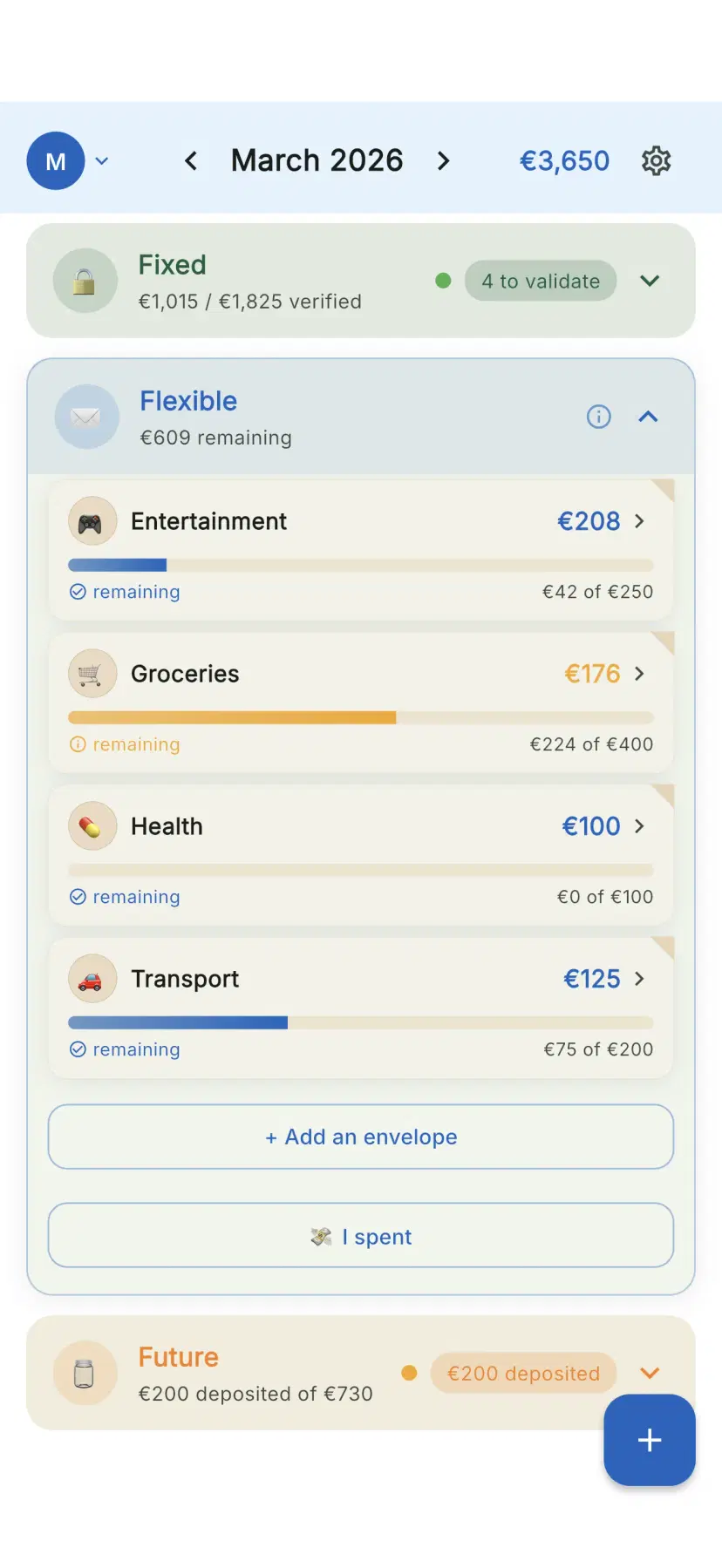
The Flexible drawer with budget envelopes
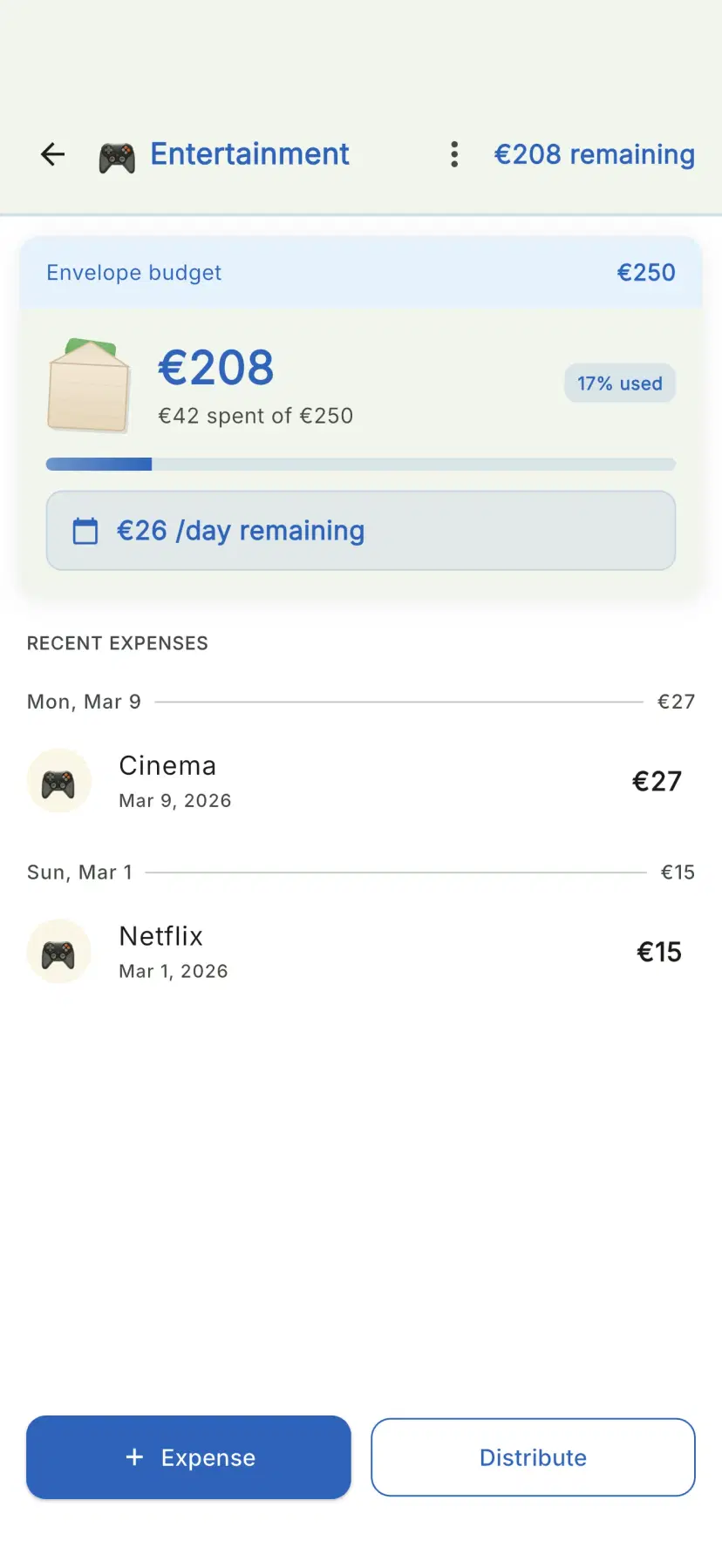
Envelope detail with progress bar
Future — Savings & Projects
The Future mode manages your savings with goals and projects.
Savings goals: target amount, deposits history, progress and completion estimate.
Projects: name, target, accumulated amount, progress bar, projected completion date.
The Cushion: special goal absorbing unallocated savings. Your precautionary savings.
Provisions: goals linked to a recurring charge for monthly provisioning. Example: annual car insurance of 1,200 EUR provisioned at 100 EUR/month.
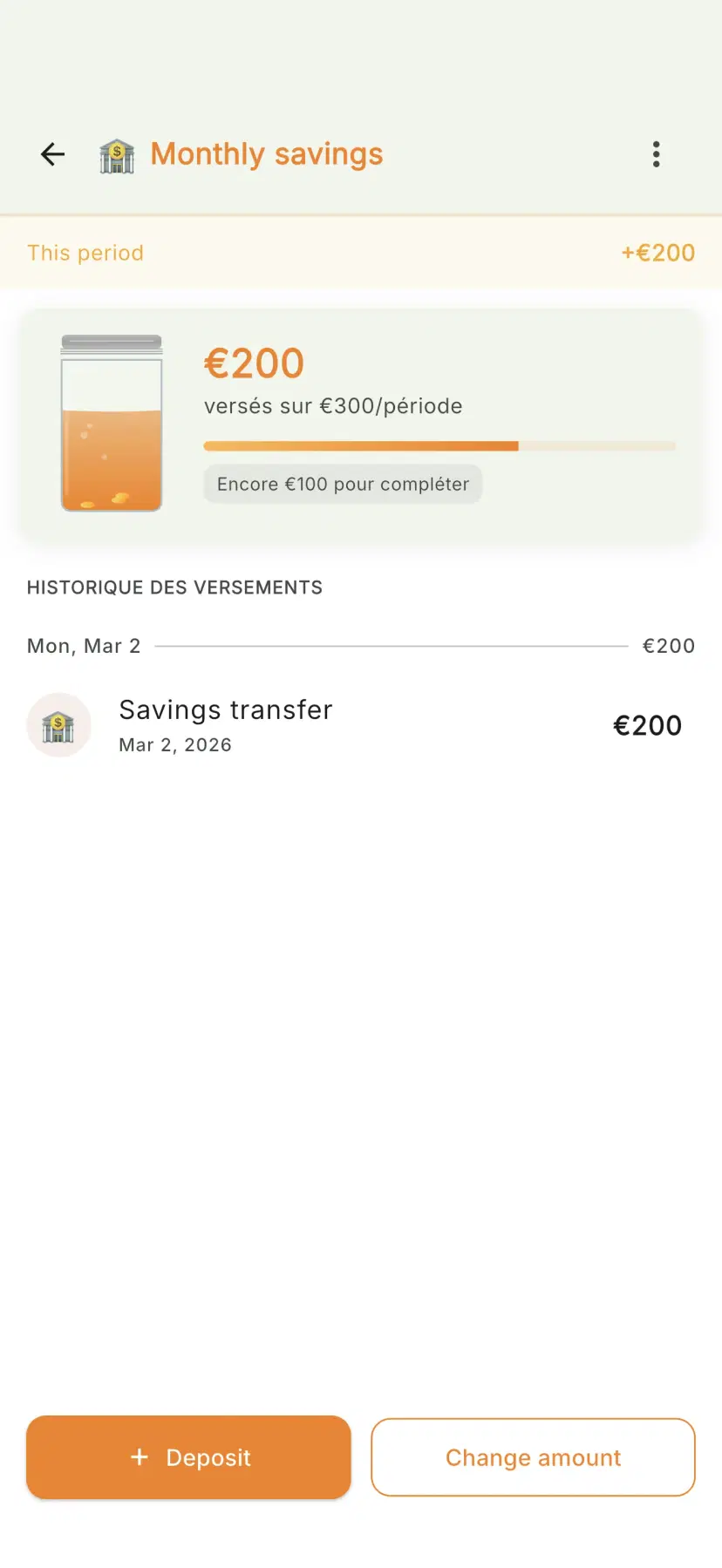
Savings jar detail in The Future
Quick Add
Record an expense in 3 seconds from the + button.
1. Numeric keypad opens immediately
2. Enter the amount
3. Choose the envelope (last used is pre-selected)
4. Tap "Got it!"
The app auto-categorizes and updates your widget. From the widget: the "Quick expense" button opens this directly, even when the app is closed.
Periods: Start & Closure
Period start: enter your income (pre-filled from last period), adjust the 3F split if needed.
Period closure: enriched summary with progress per drawer, earned badges (with confetti!), surplus management.
2-level surplus: first per-drawer (each envelope surplus treated individually), then global (remaining surplus: save, carry over, or redistribute).
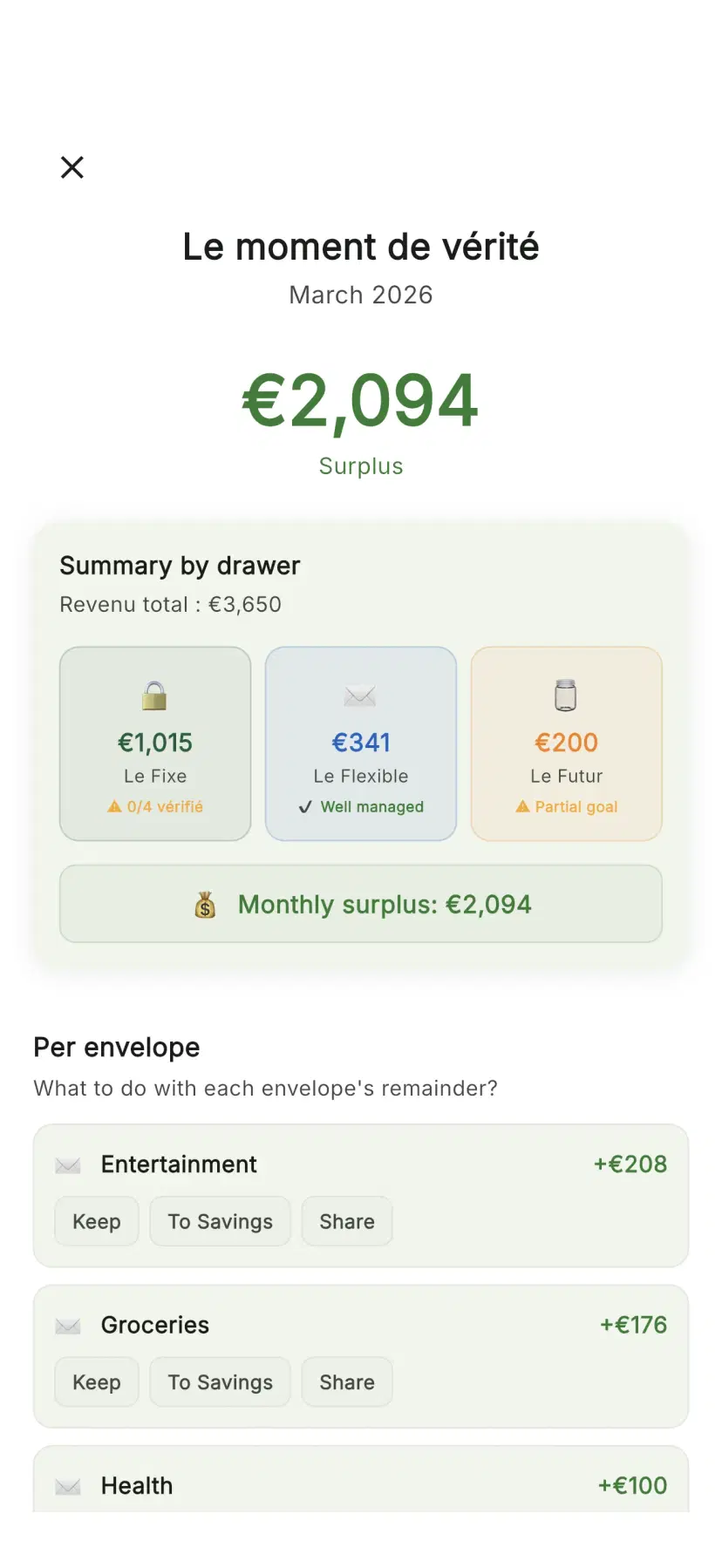
Period closure screen with summary
Categories & Auto-categorization
Expenses are auto-categorized: Food, Transport, Health, Entertainment, Home, Other.
Learning: each correction improves future suggestions. After a few corrections, expenses in the same envelope will be correctly categorized.
Category analysis (Premium): pie chart breakdown, detail per category, comparison with previous period.
Envelope Carry-Over
Carry-over lets you keep unspent envelope balance across periods.
3 modes: None (reset to zero), Unlimited (full carry-over), Capped (up to a maximum amount).
Configure in each envelope's detail. The carried-over amount is visible on the dashboard.
Multi-source Income
Define multiple income sources: Salary, Freelance, Benefits, Investments, Other.
Templates based on your profile: Student (Scholarship, Part-time job), Employee (Salary), Family (Salary 1, Salary 2, Benefits), Freelance (Missions, Regular clients).
Analytics & Trends
6-period trend: sparkline chart showing income, expenses, and savings evolution.
Monthly comparison: planned vs actual per drawer, % variation from previous period.
Category breakdown (Premium): pie chart with per-category detail.
Analytics detail: interactive charts, top 3 most-spent envelopes and categories.
Serenity Score & Context Engine
Serenity Score (0-100): 80-100 (green) Excellent, 60-79 (amber) Good, 40-59 (orange) Attention, 0-39 (red) Alert.
Based on: charge compliance, envelope respect, savings contributions, usage regularity, timely closure.
Context Engine: personalized insights — alerts, celebrations, challenges, comparisons, predictions. Always positive, never judgmental.
Home Screen Widget
A widget showing your envelopes at a glance on your home screen.
Content: total remaining, daily budget, up to 5 envelopes with progress bars, quick expense button.
iOS: Long press > "+" > Search "Plan&Multiply" > Choose widget
Android: Long press > "Widgets" > Search "Plan&Multiply" > Drag to screen
Configure displayed envelopes in Settings > Widget.
Settings
Budget: 3F split, budget cycle (start day), income
Appearance: Theme, color palette, language, currency
Accessibility: Text size (100-200%), high contrast, non-color indicators
Data: Envelopes, charges, export/import, migration, reset
Subscription: Premium status, cloud sync
Gamification
Badges (evaluated at closure): Precise, Saver, Locked, Quick, Perfect, Regular.
Streaks: consecutive days counter (1 grace day per week). Milestones at 7 and 30+ days.
Savings milestones: confetti notification at 25%, 50%, 75%, and 100%.
Share cards (Premium): share your streaks, scores, and goals.
Notifications
3 layers: periodic reminders, contextual alerts, celebrations.
Daily bulletin: personalized summary with budget/day, unchecked charges, critical envelope, savings progress.
Tip Bar: contextual tips that adapt and disappear after a few views.
Sharing & Multi-user
(Premium) Manage a shared budget, ideal for couples or roommates.
3 modes: 50/50, 100% (single income), Prorata (based on each person's income).
Invite: Settings > Sharing > "Invite" > QR code or link. Data synced in real-time.
Export & Migration
Export (Premium): export all data as JSON.
Import: import a JSON file with verification.
Migration from old app: via Firebase or email/password from your old account.
Accessibility
WCAG 2.1 AA compliant: 4.5:1 contrast, 48x48dp touch targets, screen reader labels, text zoom up to 200%.
Dark mode: smooth transition, no pure black/white.
Settings: text size, high contrast, non-color indicators.
Supported Languages
Language changes are instant and don't affect your data. All languages are 100% translated.
French
FR
English
EN
German
DE
Spanish
ES
Italian
IT
Portuguese
PT
Glossary
Every app feature
Every feature in detail, exactly as in the app — Kim, real balance, import, debts, net worth and more.
Living allocation — adjust your money all month+
Instead of a fixed split, Plan & Multiply helps you arbitrate your money during the month: how much is available, and where to send it. Premium feature.
The "Available money" card
On your dashboard, a card shows what you really have left to arbitrate, in three states:
- Positive: you have room → CTA "Give it a mission". - Balanced: your plan holds, nothing to arbitrate. - Deficit: money is missing → ways to rebalance.
The amount comes from the same calculation source as everywhere in the app (remaining-to-live, per-day budget) — no number recomputed a different way.
Transfer between categories
You can move money from one category to another (Charges / Daily / Future) without re-setting everything:
- V1: it adjusts your plan (percentages or anchored amounts). - If you specify a named pocket or project, the amount can be credited to it on top of the plan adjustment.
To undo, just transfer back the other way.
"Set aside" suggestion
When the card allows it, Plan & Multiply suggests setting aside the available money toward a goal. The suggestion comes from your real consumption (what you spend vs what you allocated), never from keyword matching. You always decide.
Unexpected expense — absorb a surprise
Enter the amount of an unexpected expense: the app suggests a recovery plan — where to take the money (your free Daily, then Future, then Charges) and, if needed, how to spread the rest over a few months. Nothing moves without your approval.
Boost a goal
For your current goal, see the monthly amount needed to reach it within your horizon, plus three levers if you're behind: cut spending, push back the goal, or add extra income.
Good to know
- It's assisted manual arbitration: the app suggests, you decide. No automatic allocation. - Premium feature. "Free up money" stays free.
Today — your decision of the day, in one screen+
The Today tab opens on ONE decision (today's move), then a few essential cards tailored to your situation. Tap a number or a card to act.
The Today screen is short and curated: it only shows what matters, in the order that's relevant to you. No more carousel to swipe through.
What you see (top to bottom)
1. Header: the current month + two door buttons Income and Budget (quick shortcuts — they used to be buried in Settings). 2. Next action: a single "1 number + 1 move" card = the decision of the day (log an expense, set money aside…). It hides itself when there's nothing to do. 3. Your essential cards (3-4, depending on your situation): your key number (left-to-spend, project in progress, or accounts), your allocation (Bills / Daily / Projects) and the compass (income donut). 4. When it's time: the period closure appears near month-end; your tasks if you have any. 5. Customize: at the bottom, "Customize my dashboard" to show or hide blocks as you like.
Tailored to you
Depending on what brings you here (getting out of the red, a project, managing as a couple, or just understanding), the card order changes to surface what matters most to you.
Troubleshooting
- "The daily budget doesn't match what I expected": "To spend /day" = remaining Flexible envelopes ÷ days left in the month. If some envelopes are already overshot, this number drops mechanically. Re-check envelope by envelope. - "Why does the number change every day?": by design — the budget is smoothed across remaining days. Underspend today, tomorrow goes up. Overspend, tomorrow drops. - "My income is wrong": tap the Income button in the header to open your income sources and update it. - "I'm missing a card / I have too many": "Customize my dashboard" at the bottom lets you show or hide each block. - "Negative account balance even though my envelopes are fine": account balance = income − actual recorded expenses. A big debt payment or project deposit early in the month explains it — it rebuilds as your next incomes arrive.
Adding or changing your income after onboarding+
If you skipped the income step during onboarding (or if you change your salary later), Plan & Multiply needs to recalibrate your "Global Budget" envelope. On versions before 4.0.0, this recalibration didn't happen — the envelope stayed stuck at 0 €.
How the app builds your Global Budget
During onboarding, you enter a monthly income and an allocation (typically 50 % Fixed / 30 % Flexible / 20 % Future). The app then creates a main "Global Budget" envelope in the Flexible drawer with: amount = income × flexible percentage / 100. For example: 2,500 € × 30 % = 750 € monthly flexible budget.
The problem case (versions < 4.0.0)
If you skipped income at onboarding (Q4 skipped), the app still created a Global Budget envelope, but with amount = 0 €. Later, when you added your salary via Settings → Income, the Flexible drawer would update live in display, but the Global Budget gauge kept reading 0 € direct from DB. Result: "Budget exceeded" on the first expense.
The fix shipped in 4.0.0
Two angles:
- A — Skip creation onboarding without income: if you don't enter a salary, the Global Budget envelope isn't created at 0 €. It's deferred to the first income save. - B — Auto-rebalance: a service (BudgetGlobalSeederService) runs after each income create/update/delete: - 0 non-system variable envelope → create Global Budget with the right amount - 1 non-system variable envelope → update its amount - ≥ 2 variable envelopes → don't touch (preserves your manual allocation) - Income set to 0 → don't touch (preserves a manual amount)
"I added my salary and Global Budget is stuck at 0 €"
If you see this symptom: you're probably on a version before 4.0.0. Solution: update the app. Your next income save will recalibrate your Global Budget automatically.
If you're on 4.0.0+ and the gauge stays at 0 € after editing income: you might have several non-system variable envelopes (the app then avoids touching your manual split). Go to Flexible → edit the amount directly.
"I have 2 Flexible envelopes and the app didn't update"
That's intentional. When you've split your flexible across several envelopes (e.g. Groceries 400 / Leisure 200 / Transport 150), the app considers you made an explicit choice and won't overwrite it on income change. To rebalance, manually edit each envelope from the Flexible drawer.
Your daily budget (and which envelopes count)+
The big "X € / day" on your dashboard is what you can spend today. You choose which envelopes feed that number.
Why choose your envelopes
If an envelope is off-limits (a provision, money already committed), it shouldn't inflate your daily amount — otherwise the app tells you that you can spend more than you really can.
How to remove an envelope from the daily budget
Two ways:
- From the dashboard: under the "€ / day", tap "choose" (or the "some are off-limits? remove them" message). Your envelope list opens with a switch each. Uncheck the ones you don't touch — the daily amount recalculates live. - Per envelope: open an envelope (Spending tab) → "Counts in your daily budget?" → Yes / No.
By default
All your envelopes count by default. It's up to you to set aside the ones that are off-limits.
Change the currency (€, $, etc.)+
Settings → Appearance → Currency. Pick your currency from the list.
The currency is changed in Settings → Appearance.
Steps
1. Open Settings (gear icon). 2. "Preferences" section → tap "Appearance". 3. In the "Regional preferences" card, tap "Currency". 4. A list opens, grouped by region. Tap your currency (e.g. Euro €, Dollar $) → it applies immediately.
Good to know
- The change is visual: it swaps the symbol shown everywhere (€, $, £…). It does not convert amounts you already entered — the figures stay the same, only the symbol changes. - You can also pick your currency during onboarding (first setup).
Validating charges: why the total moves (or doesn't)+
A charge only counts in the bilan once you mark it as paid. If you forget to validate some, the Fixed total will look low — that's expected, not a bug.
Each month, Plan & Multiply generates one occurrence per fixed charge you've set up (rent, subscription, insurance, loan…). The occurrence starts as "to validate" and stays there until you confirm the charge actually hit your account.
Why manual validation?
- A configured charge is a monthly promise. A validated charge is a real expense. - Until you validate it, the app doesn't create a fixed-expense transaction → it won't appear in dashboard totals or in the closure summary. - This handles real-world variations (delayed payment, skipped month, cancelled subscription).
How to validate a charge
1. Open the Fixed tab from the dashboard. 2. Pending charges show with a "to validate" badge in amber. 3. Tap the charge → confirm the actual amount debited (defaults to the expected amount) → "Validate". 4. Color turns green. The transaction is created. The Fixed total updates.
Tip: the "Validate all" button at the top validates every charge for the month at the expected amount in one tap — useful when everything went through as planned.
The Fixed total looks wrong / charges aren't being deducted
If you look at the dashboard or the period closure and the Fixed total seems too low, it's almost always because some charges are still pending validation. The Fixed card shows the paid total, not the planned one.
Quick check:
- Open the Fixed tab → look at the X/Y verified indicator. If X < Y, some charges still need validating. - Starting in version 4.2.0, the app explicitly warns you before closing if charges are pending and shows the planned total alongside the paid one.
If everything is validated and the total still looks wrong, open a ticket with the charge name — we'll investigate live.
Why I see "8/11 verified" on the closure screen
It means: 8 out of 11 charges configured this month have been marked as paid. The 3 remaining ones aren't counted in the Fixed total. Go back to the Fixed tab to handle them before closing if you want a complete summary.
Your fixed costs, on autopilot+
Set them up once, forget them forever.
The Fixed pillar covers everything that recurs each month without surprise: rent, subscriptions, insurance, loans, healthcare. Plan & Multiply pre-fills and validates them at the right date.
Adding a fixed cost
From the Charges tab, tap Add a charge (+ button). Enter:
- Amount monthly or one-off - Frequency: monthly, quarterly, yearly, or specific date - Charge day (1-31) - Status: active or paused
For yearly costs (e.g., car insurance at 360 €), the app automatically creates a monthly provision of 30 € so the money is ready by the due date.
Validate / check
In the Fixed tab, you see costs To validate, Paid, and Pending. One tap to validate — the app debits the matching Fixed envelope.
Pause
Going on holiday and your gym subscription is suspended? Open the cost, set it to Pause. It's not counted while suspended.
Migration / bank change
If a direct debit changes IBAN, the amount or frequency evolves, just edit the cost. Past history stays, future reflects the new config.
Troubleshooting
- "My fixed cost doesn't show in the total": check it's in Active status (not Paused) and that the current month falls within its activity period. A cost created with "starts next month" doesn't count yet. - "I validated but nothing happens": validating debits the matching Fixed envelope. If the envelope doesn't have enough provision, the app accepts the validation but flags an overshoot. Re-check your Fixed envelope in the Fixed tab. - "The real direct debit differs from the planned amount": edit the cost, set the new amount. Past history stays, future reflects it. For variable costs (utilities), they now display with a ~ prefix and you can adjust at each validation without touching the record. - "I'm not getting the D-3 reminder": make sure notifs are allowed in system settings and that Settings → Notifications → Fixed costs toggle is on. The reminder only fires for the next future due date, not for already-past costs of the month.
Debts vs projects: why your debt isn't a goal+
A debt should display as a debt (remaining balance, monthly payment, % repaid), not a savings goal (0 € / 0% reached). If you see the opposite, it was a routing bug — fixed in 4.0.0.
In Plan & Multiply, Future projects are for saving up toward something (vacation, emergency fund, big purchase). Debts, conversely, start from an existing balance to repay. Both live in the Future drawer UI-side, but their detail screen and math are different.
How to create a debt properly
1. Open The Future → tap « + » → choose 🔓 Debt (not "Goal"). 2. Enter: name (e.g. "Sofinco"), remaining balance (currentBalance), monthly payment, optional rate. 3. Validate. The app creates a project of type debt with its own detail screen.
If your debt appears as a goal at 0 € / 0% reached
Symptoms:
- Subtitle GOAL · NO DATE SET (should be DEBT) - Hero circle at 0 € instead of the remaining balance - 0% reached badge instead of % repaid - "Deposit now" CTA instead of "Pay back"
That was BUG-168 (testing late April 2026, fixed in 4.0.0). Technical cause: bad routing of the debt to the generic savings-project screen + a type test comparing 'dette' instead of 'debt'. On version 4.0.0+ this is fixed: your debt displays as a debt from creation.
If you're on an older version and see this: update the app. If you're on 4.0.0+ and it still happens, open a ticket with the debt name and a screenshot — we'll investigate live.
Key differences: debt vs project detail screen
| | Debt | Savings project | |---|---|---| | Hero shows | Remaining balance to repay | Amount saved so far | | Percentage | % repaid (counts down) | % reached vs target (counts up) | | Main CTA | Pay back | Deposit now | | Specific fields | Monthly payment, rate | Target date, target amount |
Converting between debt and project
No automatic conversion. If you created a debt by mistake, delete it from its detail screen then recreate a project (and vice-versa). Linked transactions stay attached to the original project.
Start the budget at a specific month (ignore earlier months)+
There's no "start at month X" setting in the monthly cycle. To start cleanly at a date, the only clean way is to reset your data.
What's possible
P&M runs a continuous monthly cycle. There's no option to "only count from May 1st" that keeps your setup while erasing just the previous months.
The honest workaround: start fresh
If you want a clean start at a new date:
1. Settings → "My data". 2. Danger block → "Reset data" → confirm.
⚠️ This is a full wipe (transactions, envelopes, projects, income). If cloud sync is on, the cloud is purged too. Only do it if you truly want to start from scratch — then reconfigure income and budget for the month you want.
Tip if you DON'T want to erase everything
You can simply ignore past months' figures and focus on the current month: the dashboard always shows the current period. Old months stay in history but don't stop you from tracking the current one.
Your debts, no double charge+
The monthly payment lives in the fixed charge. Extra repayment lives in the debt goal. No more confusion.
A debt in P&M is a goal of a special type: you track the remaining balance, repayment pace, estimated end date. The debt's monthly payment is carried by a linked fixed charge (the personal loan, student loan, mortgage, etc.).
Creating a debt
Savings tab → + → pick Debt or check "Debt" on an existing goal. Enter:
- Name (e.g., "Car loan") - Borrowed amount (e.g., 12,000 €) - Remaining balance (e.g., 8,500 €) - Monthly payment (e.g., 230 €/mo) - Estimated end date (e.g., July 2028)
Then link a fixed charge to the debt: Edit debt → Linked fixed charge → Pick. If the charge doesn't exist yet, create it from the Fixed tab first.
Contextual sticky bar
On a debt linked to a fixed charge, the bottom button adapts to the monthly state:
- Monthly not yet paid: - Primary button: Validate this month (X €) → opens the fixed-charge validation sheet directly, from the debt screen - Discreet link below: + Extra repayment for an anticipated payment on top
- Monthly already paid this month: - Status line: ✓ This month validated · 500 € - Primary button: + Extra repayment (the monthly is done, only extra remains)
No more ambiguous "Deposit" button mixing monthly and extra.
The diff pre-fill
If you made a 200 € extra repayment early in the month (e.g., work bonus), when you later tap Validate this month (500 €), the validation sheet opens with:
- Sage box: "200 € already paid this month on this debt — 300 € left to settle" - Amount pre-filled: 300 € (not 500 €)
You confirm, balance drops by 300 € — month total = 200 (extra) + 300 (monthly) = 500 €. No more double charge.
If you already paid more than the monthly (e.g., 600 € extra), pre-fill becomes 0 € with an amber box: "600 € already paid — the 500 € monthly is fully covered. Tap 0 to close."
Repayment strategy
On a debt detail, kebab ⋯ → Edit lets you pick:
- Minimum: you just follow the monthlies - Avalanche: you target the highest-rate debt first - Snowball: you target the smallest debt first to clear it fast (psychological effect)
The app doesn't move money automatically — it's just a visual reminder of the recommended order.
Multi-debts
Multiple simultaneous debts are supported. Each has its own linked fixed charge, its own strategy. The Savings tab shows total debt + aggregated total monthly.
Troubleshooting
- "Why is my debt showing 0 €?": you probably filled in borrowed amount but forgot remaining balance. Edit the debt and fix the remaining balance — that's the figure that drives everything (progress, end date, sticky bar). - "I validated the monthly but the debt balance didn't drop": check the fixed charge is actually linked to the debt. Without the link (Edit debt → Linked fixed charge), validating the charge does not decrement the balance. Set it in one tap. - "I made an extra repayment then validated the monthly — I was charged twice": that's the bug the diff pre-fill fixes. If you still see a duplicate, the extra repayment was likely recorded as a generic "project deposit" instead of "debt extra repayment". Delete the duplicate, redo it from the debt screen. - "How do I close the debt in one go?": open the debt → + Extra repayment → enter the full remaining balance. Balance hits 0, debt closes. Then pause or delete the linked fixed charge so it stops showing up.
Flexible envelopes: your daily life, smoothed+
One envelope per category, smoothed across remaining days.
The Flexible pillar is your daily life: groceries, transport, leisure, eating out, health. You set a monthly budget per category, the app shows you how much you can spend per day without tightening your belt at month-end.
The smoothing principle
If you have 450 € for groceries over 30 days, the app shows 15 €/day available. Spend less some days, the daily budget rises afterward. Overspend, it drops — you see the impact immediately without calculating.
Add an expense
Tap + at the bottom, select the envelope, enter the amount. The transaction is immediate, the envelope empties.
You can also scan a receipt (Premium) or import a bank CSV in batch.
Set an envelope amount
Long-press the envelope → Edit budget. Or do it from Settings → Budget → Flexible envelopes.
Carry-over envelopes
Enable Carry-over on an envelope: unspent balance rolls to next month. Handy for fluctuating categories (clothing, gifts, sport).
Rebalance mid-month
You see you'll overshoot on Groceries and Leisure has budget left? Long-press on Leisure → Transfer to Groceries. Three free transfers per month (unlimited in Premium).
Troubleshooting
- "My envelope is over budget but I didn't buy anything": check if a transaction from a previous month was logged on this envelope by mistake (long-press a row → edit date). Or if a fixed charge wrongly points at this Flexible envelope (reassign it to Fixed in Settings → Budget). - "Carry-over didn't apply": the Carry-over option must be enabled on the envelope BEFORE the month closure — open the envelope settings (⋮ on the tile) and turn the toggle on. Otherwise surplus follows the "End-of-period surplus" rule (Keep in Reserve or Reset to zero). - "Why is the balance negative?": you spent more than the monthly budget. That's OK — the app doesn't block you. To relieve visual pressure, transfer from another envelope (long-press → Transfer) or raise the monthly budget via long-press → Edit budget. - "The /day budget is too low": it's smoothed across remaining days of the month. If you overspent early, the daily drops. Either tighten, edit the total budget, or transfer from another envelope.
Export a statement+
Export your data (expenses, bills, income, projects) as CSV or PDF, like a statement, to keep or share.
How to
1. From the "Today" screen, bottom → Export a statement (or via More › Understand). 2. Pick the format: CSV (spreadsheet) or PDF (readable). 3. Pick the period. 4. Share or save the file.
What gets exported
The 4 sources: expenses, fixed bills, income, projects/savings, for the chosen period.
Free vs Premium
- Free: export of your data (basic backup). - Premium: richer statement formats (CSV/PDF) and extended periods.
Import your bills by email+
No more entering charges one by one. Forward your bills to a personal address and Plan & Multiply hands you the charges, ready to go.
How it works
1. Go to Fixed charges → envelope icon ("Import my bills"). 2. Copy your import address (inv-…@in.planandmultiply.io) — it's yours only. 3. In your inbox, search "invoice" and forward them all at once. 4. Back in the app: your bills show up as proposals. Review, uncheck what you don't want, and activate.
Nothing is created without you
The app always proposes — no charge is added until you confirm. You stay in control.
Free and Premium
You activate up to 5 charges for free. With Premium, it's unlimited — all your bills at once.
Security
Your address is secret and regenerable. We only accept emails from your own address, and we don't keep the attachment after reading it.
Import a bank statement+
Got a statement exported from your bank? Import it and Plan & Multiply sorts everything for you — charges, income, savings, spending — without creating anything behind your back.
Which formats
Open Import, then pick File. Accepted formats: CSV, OFX, QIF and PDF (the statement just as your bank gives it to you).
How it works
1. Pick your file. 2. For a PDF, the app reads the statement and suggests a sort: fixed charges, income, savings, spending. Nothing is left "envelope-less" — anything not recognized goes to To sort, so everything stays visible. 3. You land on a review screen: adjust, uncheck, then confirm.
No duplicates: reconciliation
If you already have entries for the month, the app compares the statement to what you have and shows 4 clear groups: to add, amount mismatches, already there, and not on the statement. You only confirm what's missing — no duplicates. If your month is empty, it's a plain import.
You stay in control
The app always suggests — nothing is saved until you confirm. The file is read then not kept. (PDF up to 7 MB.)
Kim coach: controlling what she suggests (and muting her when needed)+
Kim can suggest contextual topics based on what you do in the app. If you find it intrusive, you can hide her for the week, disable suggestions, or turn her off entirely.
What Kim suggests
Depending on your activity, Kim may suggest:
- A help topic ("how does closure work?") when you do a related action for the first time. - A factual comment on your month ("at this pace, your month will be positive"). - A discreet celebration on a milestone (first project, positive month…).
She won't suggest the same thing twice — if you've already opened a topic, she won't re-suggest it.
Hide Kim this week
If it feels like too much for now:
1. Tap the Kim avatar bottom-right of the dashboard. 2. Menu (kebab icon ⋮) → "Hide this week". 3. Kim disappears from the dashboard for 7 days. At D+7 she returns silently (no notification).
Disable contextual suggestions
If you want to keep Kim accessible (for explicit questions) but without her suggesting anything herself:
Settings → Emotion → "Contextual suggestions" → uncheck.
You can still open Kim manually via the avatar and ask her questions. But she'll no longer appear with unsolicited suggestions.
Disable Kim entirely
Settings → Emotion → "Kim coach" → uncheck. The avatar disappears from the dashboard. You can re-enable it any time in the same place.
"Kim re-suggests a topic I've already read"
If that happens, it's likely a bug — each topic has a "seen / unseen" status per user. Open a ticket with the topic concerned and we'll investigate.
Possible exception: if you reinstalled the app, the "seen topics" history can be reset (unless you were signed in with an account and sync was active).
"I want to talk to a human, not Kim"
Kim has a "Talk to a human" button always visible in the chat footer. Tap it → you open a support ticket with your message as the first element. You can also trigger auto-escalation: if you reply twice in a row saying Kim didn't help, she'll propose the human herself.
Free up money+
In a few minutes, spot money to free up in your recurring expenses — then choose where to reinvest it.
The idea
Plan & Multiply analyzes your recurring charges (rent, subscriptions, insurance…) and suggests saving opportunities ranked by gain, time and effort. You handle one at a time, and the money you free up feeds your goals.
How it works
1. Open Free up money (from the savings icon on the Charges screen). 2. For each opportunity you see the estimated gain (€/month and yearly cost), the time and the effort. 3. The suggestion (cancel, optimize, renegotiate, compare) is pre-filled — you can always correct it. 4. Act: Track (set aside), Confirm when done, or Cancel. 5. Not relevant? "Not a subscription" or "I'll keep it" (reminder snoozed 90 days).
The tabs
- To cancel / To do: opportunities to handle. - In progress / Waiting: what you've started (cancellation pending…). - Done: what you've already freed up.
My savings
A money freed counter tracks your gains. It's a declared / estimated amount, separate from your real balance and net worth: nothing is added to your accounts automatically. If you want to move that money to a goal, you confirm it yourself — only then is a real contribution created.
Good to know
- Rent, taxes and loans are marked "keep": informational, never suggested for cancellation. - In V1, the module is free for everyone.
Hide balances (privacy mode)+
Hide every amount at once, replaced with ••••. Handy in public, on the train, or if someone is looking at your screen.
Privacy mode masks all euro amounts in the app and replaces them with •••• €. Percentages, remaining days and counters stay visible.
Two ways to turn it on
1. From the dashboard (1 tap): tap the eye icon 👁 at the top of the screen (next to the Settings gear). A crossed-out eye means amounts are hidden. 2. From settings: Settings → Data & privacy → "Hide balances".
What is hidden / what isn't
- Hidden: all € amounts (balance, budget, spending, projects, fixed charges…). - Not hidden: allocation percentages, remaining days, transaction counts.
Good to know
- The setting is remembered: it stays in the chosen state when you reopen the app. - It's purely visual — your data is not changed, just hidden on screen. - Tap the eye (or the setting) again to show amounts.
The 3F method: Fixed, Flexible, Future+
Three pillars, one method that holds.
Plan & Multiply organizes your budget into three complementary pillars instead of a long list of categories. That's the 3F method.
Fixed — your commitments
Your recurring costs: rent, subscriptions, insurance, loans. Everything that's predictable each month.
The app schedules them once, validates them automatically, and shows you what's left to pay or already paid. You never re-enter anything.
Flexible — your daily life
Groceries, transport, leisure, health. Everything that fluctuates in your week.
Each category has an envelope with a monthly budget. The bar empties as you spend, smoothed across remaining days so you don't tighten your belt at month-end.
Future — your goals
Holidays, emergency, moving, retirement. Everything built over time.
You set a target amount and a date. The app provisions monthly and tells you in real time if you're on track.
Why three pillars?
Because mixing rent and coffee is the wrong granularity. The three pillars operate on different timescales:
- Fixed: long commitments, to automate. - Flexible: daily decisions, to arbitrate. - Future: long-term commitments, to protect.
You can adjust the three pillars anytime in Settings → Budget → Allocation.
Troubleshooting
- "Why 50/30/20? I want 60/30/10": the split is NOT enforced. Open Settings → Budget → Allocation and move the Fixed / Flexible / Future sliders to your preference. Total must be 100 %. - "My split doesn't match my income": tap the ✏️ icon on the allocation bar (page 1 of Today) or open Settings. Re-tune percentages to your actual costs + daily + projects mix. - "What if I have no Future goal?": leave Future at 0 % and redistribute over Fixed + Flexible (e.g., 70/30/0). You can activate Future later when a goal appears. The app works in 2F too. - "Total doesn't reach 100 % and the app rejects it": the 3 percentages must sum exactly to 100. If you see an error, drag a slider until the bar is full.
Edit or delete a transaction+
Swipe left to delete, right (or tap) to edit.
On the detail screen of a Flexible envelope or a project, each past transaction is directly actionable.
On a Flexible envelope
- Tap the row or swipe right → opens the edit form (amount, description, date, category). - Swipe left → confirmation then deletion.
The envelope recalculates immediately, the daily budget adjusts.
On a project
On the contributions timeline (project detail and "See all" screen):
- Swipe left on a past contribution → confirmation then deletion. The project balance drops by the corresponding amount. - Upcoming contributions (italic, simulated from your monthly plan) aren't editable here — change the amount from Project detail → Edit.
Undo a deletion
Deletion is final after confirmation. If you delete by mistake, recreate the transaction via the + button (bottom) or via Add contribution on the project.
Troubleshooting
- "I deleted by mistake, how do I get it back?": deletion is final (no trash). Recreate the transaction via + at the bottom (same envelope / project, amount, date). The balance recomputes. For project contributions, use + Deposit now with the original date. - "Can't edit a split transaction": split transactions (spread across several envelopes) don't edit line by line. Delete the full split (swipe left) and recreate it with the right amounts. - "My edit doesn't save": make sure you tapped Save (top-right of the form). If the app exits without saving, you closed the form before confirming. - "I want to edit an upcoming contribution": future contributions (italic) are projections, not real transactions. Open the project detail → Edit to change the pace or amount; the entire future timeline recomputes.
Notifications: three reminders a month, no more+
No spam. Three useful reminders, at the right time.
Plan & Multiply notifies you only at three key moments of the month. No promo pushes, no artificial engagement. You can disable each type independently.
The three types
1. Month start — "Your new month is ready. Check your envelopes." - Fires on D+1 of a new cycle, at 9 AM local. - You close the previous month (5 min) and start fresh.
2. Mid-month — "Mid-month: Leisure overshoots by 20 €. No panic." - Fires on day 14-15 of the cycle if an envelope exceeds by more than 15 %. - No notif if everything is fine.
3. Goal reached — "🎉 Japan vacation: 75 % reached!" - Fires when a Future goal crosses a milestone (25/50/75/100 %). - Shown if you haven't opened the app since the milestone passed.
How to configure
Settings → App → Notifications. For each type:
- Enable / disable - Receive hour (default 9 AM) - Silence on weekends (default off)
Which phone gets them?
In Solo mode: only on your phone.
In Couple mode: each member gets their own reminders. Period closure is however notified to all members (only one can do it, others see the result).
No ads, no marketing
The app will never send you promo, marketing, or Premium-upsell notifs. If a Premium suggestion appears, it's in-app only, and only when you try an action that requires it.
If they don't show up
1. Check that notifications are allowed in the system settings of your phone for Plan & Multiply. 2. In the app, Settings → App → Notifications: make sure the master switch is on. 3. On iOS: if Focus mode is on, notifs can be grouped in summary.
Multi-currency and multi-language onboarding+
If you see a placeholder amount of "2,500 €" while you're in Brazil, Turkey, Algeria, or anywhere outside the eurozone: that was a bug, fixed in 4.0.3. Update the app if you're on an older version.
Plan & Multiply's onboarding asks for a monthly income, typical charges and an allocation. Pre-filled amounts (placeholders) should adapt to your currency and region — not show hard-coded euros.
Supported currencies (as of 4.0.3)
EUR · USD · GBP · CHF · TRY (Turkish lira) · BRL (Brazilian real) · MXN · COP · ARS · XAF · XOF · MAD · DZD · TND · EGP · CDF · MGA · CNY · JPY.
For each currency, the app shows: the symbol (€, $, £, ₺, R$, د.ج…), relevant income ranges (e.g. 125,000 DA for Algeria, 42,500 ₺ for Turkey, 3,500 R$ for Brazil), and charge suggestions (rent, energy, internet) tuned to local purchasing power.
If you see euros while your currency isn't EUR
Symptom: income field pre-filled with "2,500", suggested charges "Rent 850", "€" symbol in the hero or recap.
That was BUG-191 (audit 2026-05-23, fixed in 4.0.3). Technical cause: copy-paste of the FR onboarding without wiring the getIncomeRanges(currency) and currencySymbol(code) helpers that already existed for 18 currencies.
Solution: update the app. On 4.0.3+, placeholders and suggestions auto-adapt to your currency (deduced from system locale or manual selection at launch).
If the app crashes at launch on some languages
The FATAL AppLocalizations.of(context)! crash was BUG-188, related to the same area (4.0.0 → 4.0.3). On a locale unsupported by l10n files (e.g. Arabic, Chinese, Japanese on some versions), the app could close on certain onboarding steps. Fixed in 4.0.3 with a clean FR/EN fallback.
Solution: update. If the crash persists on 4.0.3+, open a ticket with your version, OS and system language.
Interface languages supported
The app is fully translated in 6 languages: French, English, German, Spanish, Italian, Portuguese. For other languages, the app falls back to English (or French on some legacy keys still being phased out — see BUG-068).
Change my currency or language after onboarding
- Currency: Settings → Currency → pick from the list. Existing balances are not converted automatically, only new transactions use the new currency. - Interface language: follows iOS/Android system language. To change it, edit it in your phone's settings.
Together (or more), without arguments+
The same budget, seen in real time by each household member.
Budget sharing lets you manage finances with your partner, roommates, or family. Everyone sees the same envelopes, goals, decisions. No more "who paid what" debate.
Three sharing modes
- Solo: default. You're alone on the app, your data stays on your phone. Cloud backup is free (to protect and restore your data on another device); automatic multi-device sync in real time is included in Premium. - Couple: two phones, one budget. Real-time sync via Firebase (encrypted). Included in Premium. - Family / roommates: 3-6 people, per-member sub-allocation. Premium.
Inviting your partner
1. Settings → Sharing → Enable Couple mode (requires Premium). 2. Generate an invitation QR code from your phone. 3. Your partner scans the QR (from the app installed on their phone). They accept the shared commitments (full visibility, joint validation on large moves > 500 €). 4. Done — both phones are linked. Any change on one side appears instantly on the other.
How it works in daily life
- An expense added by one is visible immediately to the other. - Income can be per person (Sophie 2000 €, Lucas 1800 €) or combined. - Fixed costs are attributed to one or the other (who pays utilities, who pays rent). - Goals are shared (Japan vacation 2000 € together). - Period closure is done by one, the other sees the decisions and can comment.
Leaving sharing
If you change mode or leave sharing, each keeps a complete history copy on their phone. No data lost.
Privacy
You can mark an envelope as Private: transactions don't appear to the other (useful for surprise birthday gifts). The total stays aggregated without detail.
Troubleshooting
- "My partner doesn't get the invitation": the QR must be scanned from the P&M app installed on their phone (not from the native camera). Check they have the latest version. Re-generate the QR if needed — it has a short validity. - "Transactions don't sync": sync requires internet on both phones and an active Premium on at least one side. Also check you're both in the same household (Settings → Sharing → Household). Pull-to-refresh on the dashboard forces a sync. - "How do I leave a shared budget?": Settings → Sharing → Leave household. Each keeps a complete local history copy. To stop the other from seeing future edits, this cuts the link immediately. - "My partner sees private transactions": per-envelope privacy must be enabled BEFORE the transaction is added. If you logged "visible" transactions then turned privacy on, delete and recreate them on the now-private envelope.
Your external accounts, live tracking+
Savings account, brokerage, mortgage… Declare them in Wealth and log every move instead of rewriting the balance by hand.
An external account in P&M is an account you don't hold in P&M but want to count toward your net worth. Two types:
- Asset: anything that raises your net worth. Savings accounts, brokerage, life insurance, an external checking account, cash, car, real estate… - Liability: anything that lowers it. Mortgage, personal loan, family debt…
Adding an external account
Wealth → + button → Add an asset / a liability → enter a name and an initial balance. It shows up in the list right away.
Logging movements
On an account detail (tap its row):
- + Add a transaction at the bottom → pick the type (deposit or withdrawal), amount and date. - On an asset: a deposit raises the balance, a withdrawal lowers it. - On a liability: a deposit = monthly repayment (lowers the outstanding debt), a withdrawal = added obligation (rare).
The balance shown on the detail hero is recomputed automatically from every transaction.
Editing or deleting a transaction
- Tap a transaction → re-opens the form pre-filled to tweak amount, date or label. - Swipe left on the transaction → red Delete action → confirm. Balance is recomputed.
Deleting an account
On the detail screen, 🗑️ icon in the top-right → confirm. The account and all its transactions are deleted. This action cannot be undone.
Good to know
- External accounts stay local to your phone: they are not shared with your partner in couple mode (each member has their own net worth). - No automatic recurrence (each transaction is entered manually). It's intentional, to avoid silent surprises. - You can set a future date on a transaction to anticipate a scheduled transfer.
Troubleshooting
- "My external account doesn't update": there is NO bank connection. Every movement is manual: open the account detail → + Add a transaction. To make your savings account reflect your real bank balance, log the deposits or withdrawals you've made. - "How do I delete an external account?": open the account detail → 🗑️ icon top-right → confirm. The account AND all its transactions are deleted. Final action (no trash). - "The shown balance doesn't match my bank statement": balance = initial balance + sum of logged movements. If you missed some moves, add them with the right date. To restart on a clean base, delete the account and recreate it with the current real balance. - "Why doesn't my partner see my external accounts?": by design, wealth is local to each phone. Each person manages their own assets/liabilities. It's not a bug.
Period closure: the monthly ritual+
Five minutes to close the month cleanly and start the next one with confidence.
At the end of each cycle (typically the month), Plan & Multiply offers a period closure. This short ritual reviews what happened, decides what to do with surpluses, and reloads envelopes for the next cycle.
What the closure does
1. Cycle summary: income received, costs paid, Flexible spending, savings deposited. You see the delta vs your plan. 2. Surplus decisions: for each Flexible envelope with unspent balance, you choose: - Carry over to next month (on cumulative ones) - Reallocate to a Future goal (anti-bounce) - Keep as reserve on the account 3. Income confirmation for the next cycle (defaults to previous). 4. Auto-refill of envelopes per your distribution.
When closure triggers
- Auto-propose: 1-2 days before your cycle end date (configurable). - Manual: Plus tab → Close period. Useful if you want to close early.
Skip or postpone
No time now? Postpone 1-3 days. The app keeps working — new days of the next period only count once you validate.
Premium: end-of-period analysis
In Premium, closure includes an AI diagnostic: "You overshot Leisure 3 months out of 4 → increase by 50 €?", "You never touched Health → reduce by 20 € and add to Emergency?". Suggestions only, no auto-apply.
Recover a past cycle
Settings → Data → History. You can review any closed cycle, re-open if you made a mistake (changes are tracked).
My closure result looks wrong / charges are not deducted
The most common cause: the 🔒 Fixed card on the closure summary shows only the charges you've marked as paid this month, not the planned total. If you forgot to validate some charges (rent, subscription, insurance...), they're missing from this total — making it feel like "the charges aren't being counted".
Quick fix before closing:
1. Open the Fixed tab. 2. For each charge still greyed out as "to validate", tap it and confirm the amount actually debited. 3. Go back to the closure screen: the Fixed total is now correct.
The X/Y verified indicator under the amount tells you how many charges are validated. Starting in version 4.2.0 we'll also show an explicit warning before closing if charges are pending, plus the planned total alongside the paid one.
If a charge is validated but still doesn't appear in the total, that's a bug — open a ticket with the charge name and amount, we'll investigate live.
The "More" tab — your hub+
"More" gathers everything that isn't daily: manage your money, understand, your account, sharing, your coach Kim, settings and help. Organized in color sections to find things fast.
The sections
- My money: Income · Budget · Net worth (manage sources and plan). - Understand: Annual report · Comparison · analytics (read your trends). - Account: Profile · Premium subscription. - Sharing & social: shared space (couple/family) · referral. - Coach (Kim): your coach preferences. - Settings: appearance, notifications, data, import, accessibility. - Help & community: help center, feedback, roadmap, rate the app.
Good to know
- The warm tiles (colored) are your frequent shortcuts; the rest (Account/Settings/Help) is folded at the bottom, sober. - Income and Budget are also one tap away from the "Today" screen header. - Premium unlocks the full preview (analytics, net worth, shared space).
Premium: try 7 days, no payment+
Free covers 90 % of usage already. Premium = speed, not restrictions.
Plan & Multiply is 100 % usable in free on the current month. Premium opens the app for multi-month, sharing, and a few accelerators (PDF export, AI, cloud sync).
What's free forever
- Full 3F method (Fixed, Flexible, Future) - Unlimited envelopes - Unlimited fixed costs - Unlimited future goals - Real-time Serenity score - Full offline - 1 budget cycle (month)
What Premium adds
- Multi-month continuity: past month's data stays accessible, evolution comparisons activate, annual review available. - Couple / family sharing: real-time sync across 2-6 phones. - Encrypted cloud sync: automatic backup, restore on new phone. - AI diagnosis at closure: personalized adjustment suggestions. - PDF export of reports, statements, etc. - Automatic CSV import: auto-recognition of bank formats. - AI transaction categorization. - Priority support (< 24h response).
7-day trial, no card
Trial starts when you click Start my trial in Settings → Premium (or via the first contextual prompt). No credit card asked. At D+7, trial stops automatically — you fall back to free without losing anything you've configured.
To convert to subscription, it's explicit: one tap in Settings → Premium → Subscribe. Choose monthly (4.99 €/month) or yearly (39 €/year, i.e., 3.25 €/month).
Guarantees
- One-click cancel from App Store / Play Store, no friction. - No commitment: if you cancel at D+7, you've paid nothing. - No free degradation: free stays 100 % functional on the current month, for life. - Your data stays yours: Premium off = full export available.
When trial is auto-proposed
The app proposes the trial in 3 situations:
1. You finish your 1st period and want to compare with next (continuity gate). 2. You want to share your budget with your partner or roommates. 3. You request export of a report or a bank CSV import.
If you're never in those situations, the app doesn't bother you with Premium.
Troubleshooting
- "I was charged before the trial ended": impossible — the 7-day trial requires no card. If you were charged, you've already converted to a paid subscription (one explicit tap in Settings → Premium → Subscribe). Cancel in App Store / Play Store; refunds follow each store's policy. - "I can't cancel": cancel from the store: App Store → account → Subscriptions → Plan & Multiply → Cancel. On Android: Play Store → Profile → Payments → Subscriptions. The app can't cancel on your behalf — Apple/Google enforce this. - "Premium features stopped working right after paying": pull-to-refresh in Settings → Premium to force a store status check. If it persists, sign out/in or restart the app — Premium status re-syncs on open. - "I canceled but the app is still Premium for days": that's normal — the subscription stays active until the end of the paid period. You keep Premium until the last day, then fall back to free with nothing lost.
Your goals, your real margin+
One strong number, a projection, a list of deposits, one button. And — if you want — a moodboard to dream.
The Future pillar holds your goals: travel, emergency, moving, wedding. For each goal, you set a target amount and a date. The app tells you monthly if you're on track, behind, or ahead.
Creating a goal
Savings tab → + or Settings → Budget → Future → + Add a goal.
Enter:
- Name (e.g., "Japan trip") - Target amount (e.g., 2,500 €) - Target date (e.g., June 2027) - Monthly pace optional (otherwise the app derives it from the date)
The app automatically computes the pace needed to arrive on time (e.g., 2,500 € over 10 months = 250 €/month).
Reading the goal detail
At a glance:
- Hero ring in the center, with your saved amount — large, serif. The colored dot at the end of the arc shows progress. - Two status pills: X % reached + on track / ahead / N months behind. Status is computed from your real pace (average of last 3 months) vs required. - Pace + Left card: on the left your average pace (250 €/mo · avg · 1 deposit), on the right what's left to deposit (2,250 € · over 9 months). - Deposits section: past deposits + upcoming auto debits (greyed). Tap "See all" for the full timeline. - Projection: today → estimated arrival date line. A footnote shows the value with compounded interest from your local savings account (3 % FR, 4.5 % US, etc.) — Premium only.
Deposit
At the bottom, + Deposit now adds money to the goal. History updates instantly, so does progress.
The History icon to its left opens the full list of past + upcoming deposits.
Sobre / Immersive toggle
Top-right, a small toggle switches between:
- Sobre (default): light sage, minimal, readable. - Immersive: full-screen photo (if you added one), dark gradient, number at the bottom, white CTA. More filmic — for dreaming. Tap the photo zone in Immersive mode without an image to add one.
The mode is remembered per goal.
Customize the detail (kebab → "Customize")
Five opt-in components to enrich the screen. Tap the ⋯ menu, then Customize:
- Countdown: days, weeks, deposits left until the target date. - Streak: 12 month cells (green = you deposited that month). Tracks consecutive months. - Milestones: 25 / 50 / 75 / 100 % with estimated date for each tier. - Moodboard: 4 photos to drop (Place, Mood, Detail, Person). Tap an empty slot to pick from your gallery. - What if you boosted?: a pace slider — drag, the arrival date updates in real time.
None of these is forced. They're here to help you picture it, not compute.
Adjusting the target
Target changing? Edit Name, Amount, Date, or Pace via the ⋯ kebab → Edit. The app recomputes automatically without losing deposit history.
Multi-goals
You can have multiple goals in parallel. Each goal has its own compass. The app shows the monthly total to provision so you don't exceed your savings capacity.
Troubleshooting
- "My goal stays at 0 although I deposited": make sure you used + Deposit now on the goal (not a Flexible-envelope expense). Open the goal detail → "See all" to confirm the deposit appears in the timeline. Otherwise, recreate it via + Deposit. - "Target date passed, what now?": open the goal → kebab ⋯ → Edit → push the target date back or raise the pace to catch up. If the goal no longer makes sense, delete it (kebab → Delete) — deposits stay in your transaction history. - "Why does it say 'N months behind' if I deposited every month?": status compares your actual pace (3-month average) with the required pace to hit target by the planned date. If you deposited less than required, you're flagged behind — raise the pace or push the date. - "The 'Free in X months' counter doesn't match my target date": that's by design — it's computed from your current pace, not your target date. Depositing 100 €/mo on a 1,200 € goal → ~12 months, regardless of the date you set. Raise the pace to bring that closer.
Recurrence & upcoming months — what comes back on its own+
Your bills, income and envelopes can come back automatically each month. The current month is always free; unlimited future months is a Premium feature.
The current month is yours, for free
You can always plan and edit your current month without Premium: bills, income, envelopes — all editable. No limit on the current month.
Upcoming months fill themselves in (Premium)
With Premium, your recurring items roll over automatically to next month — you re-enter nothing: - Bills marked recurring (rent, subscriptions…) reappear. - Recurring income (salary, regular income) carries over. - Daily envelopes stay in place.
On the free plan: a locked preview
Without Premium, navigating to a future month shows a locked preview (🔒) of what would come back — so you can plan ahead — but editing those months is Premium-only. This keeps the current month simple and avoids double-managing.
Overdraft-safety tip
Income that hasn't landed yet isn't counted in your real balance until its date has passed — so you don't spend money that isn't there yet.
FAQ
- "Why is next month locked?" → That's the Premium preview. The current month stays free; Premium unlocks unlimited continuity. - "Do my bills come back on their own?" → Yes with Premium (if marked recurring). On free, you re-enter them each month. - "What about after an app update?" → Your current month stays free and intact. Nothing locks retroactively.
Start over (reset my data)+
Settings → Data → Reset my data
Want a clean slate? The app lets you erase all your data and return to a fresh state.
How to do it
1. Open Settings. 2. Tap Data. 3. Tap Reset my data. 4. A confirmation screen shows exactly what will be deleted (envelopes, transactions, goals). Read it, then confirm.
The app restarts as if it were day one.
Important
- The action is permanent and irreversible: there's no trash, the data can't be recovered. - If you use cloud backup (Premium), the reset also erases the backup and your other synced devices. This is noted on the confirmation screen.
Just want to start a new month?
You don't need to erase everything. To move cleanly to the next month while keeping your history, use period closure from the home screen: your charges and goals are kept, only the new month starts fresh.
Recording a refund+
Got refunded for a purchase (online return, cancellation) or a health expense (insurance, reimbursement)? Plan & Multiply has a dedicated Refund mode: the money goes back into the right envelope and your available budget rises accordingly.
How to do it
1. Tap the + button at the bottom center. 2. In the add sheet, switch from Expense mode to Refund mode. 3. Pick the envelope the original expense came from (e.g. Shopping for an online return, Health for an insurance refund). 4. Enter the amount refunded and confirm.
The amount is credited back to the envelope: the gauge goes back up and your monthly available increases by the refunded amount.
Link it to the original purchase (optional)
When entering the refund you can link it to the original transaction — handy to keep a clean history and track partial reimbursements.
Purchase refund vs insurance reimbursement
- Return / cancellation: you get back what you spent → refund on the purchase's envelope; the budget returns to its pre-purchase state. - Insurance / health reimbursement: a treatment cost you X, part is paid back → refund on the Health envelope (or the one you used). If you'd rather treat it as separate incoming money, you can also add it as a one-off income (More → Income), but Refund mode is the simplest way to keep the envelope tracking accurate.
Fixing a mistake
Wrong envelope or amount? Long-press (or swipe) the refund line in the envelope detail → Edit or Delete. The total updates immediately.
Manage your income (salary, variable, several entries)+
Everything happens in the "My income" screen, reached from the dashboard (the "Your income" card/door).
Where to add / edit income
From the dashboard, tap the income card ("Your income"). You land on "My income".
- Add a source: "Add a source" button → a form opens (name, amount, type). - Edit: tap an existing source → the same pre-filled form opens. - Delete: tap the ✕ icon on the source → confirmation.
After each change, your budget recalculates immediately for the current period.
Variable-amount income
Pick the "Variable" type: you set a floor (the safe minimum) and an estimate. P&M budgets cautiously on the floor.
Salary in several payments / multiple incomes
P&M handles as many sources as you like. For a salary paid twice (e.g. the 1st and the 9th), or multiple incomes (salary + pension…), create one source per payment/income. Each can be edited and deleted separately.
Changing your salary mid-month
Open "My income", tap the source, change the amount, save. The change applies to the current period and recalculates your budget right away.
The Serenity score: your big picture in one number+
A score from 0 to 100 summarizing your current financial health.
The Serenity score tells you at a glance whether your budget holds up. Computed in real time from 4 indicators, it evolves daily with your decisions.
How it's calculated
The score combines four weighted signals:
1. Fixed coverage (40 %) — are your fixed costs properly provisioned? 2. Flexible discipline (25 %) — do you stay within daily envelopes? 3. Future progress (25 %) — are your goals on pace? 4. Emergency reserve (10 %) — do you have at least 1 month of costs in reserve?
Each indicator ranges 0 to 100. The global score is their weighted average.
How to read it
- 80-100 — Green: budget is holding well. Keep going. - 60-79 — Yellow: a signal to watch. The app tells you which. - 40-59 — Orange: a pillar slipping. Recommended action this week. - 0-39 — Red: situation to correct quickly. The app suggests concrete levers.
What the score is NOT
- Not a "morality" rating — you can spend what you want, it's your life. - Not a wealth indicator — score 90 with 1800 € income is as valid as score 90 with 5000 €. - Not a comparison between users — it's your score vs yourself over time.
Evolution over time
On the dashboard, the score is complemented by its 30-day trend (↑ ↓ →). You see if you're progressing, stagnating, or slipping.
In Premium, you access monthly score history (last 12 months) and detailed breakdown per pillar.
How to improve it
- Fixed coverage < 100 %: add the missing provision or pause a cost if you suspend it. - Flexible discipline low: adjust envelope budgets where you regularly overshoot. - Future progress < expected: deposit a top-up or adjust the target date. - Emergency reserve < 1 month: create an Emergency Future goal and provision over 6-12 months.
Troubleshooting
- "My score drops although I set money aside": that deposit may not have landed where the score expects. The score weights Fixed at 40 % — if you deposited on a Future goal but Fixed coverage drops, the global score goes down. Re-check the 4-indicator breakdown on your dashboard. - "How do I improve it quickly?": start with the heaviest lever (40 % of the score) — make sure Fixed envelopes cover every scheduled cost of the month. A missing Fixed provision matters way more than a 10 € Flexible drift. - "My score stays at 0 or doesn't show": a minimum of setup is needed to compute it (income + at least 1 envelope + 1 cycle). Open Settings → Budget to finish setup. The score appears as soon as the 4 indicators have a value. - "Why does the score change when I log an income?": a higher income with no new spend improves Fixed coverage and Flexible margin — so the score goes up. Conversely, a missing income entry drops it for no real reason.
The streak counter: how it works+
A streak counts the consecutive days you've opened the app and done at least one action (expense, charge validation, viewing the bilan). Missing a day doesn't "break" your streak harshly — we give you a margin.
What it's for
The streak isn't a reward or a punishment. It's just a signal for you: if you come back regularly, you know where you stand; if you disappear for 2 weeks, you come back to a budget that's more or less up to date. The streak gives you an image of your consistency.
How it's calculated
- Counts +1: a day where you opened the app and did at least one action (transaction, validation, opening a detail). - Counts 0 but no reset: a day you didn't open the app. You can catch up tomorrow. - Reset to 0: 3 consecutive days without any opening. The streak restarts at 1 on your next action.
It's a "tolerant streak" — not the Duolingo model where you lose everything on the first slip. We'd rather you came back without guilt.
"I missed a day, is everything broken?"
No. You have 2 days margin before the counter goes back to 0. Come back tomorrow, your streak continues.
"How do I see my current streak?"
On the dashboard, tap the streak zone (flame/series icon) at the top. You see today's counter, your personal record, and the calendar of the last 30 days.
I want to disable the streak
Settings → Emotion → uncheck "Show streak". The feature stays calculated in the background (used by the Serenity score), but the counter no longer appears visually.
Difference with the Serenity score
- The streak = how many consecutive days you use the app. - The Serenity score = how healthy your budget is (mix of several criteria: remaining budget, validated charges, usage regularity…).
The two are related but distinct.
Tracking replies on your support ticket+
Today, the app does not push notify you when the team or AI replies to your ticket: you only see it on your next app open. If you asked something urgent, we recommend opening the app every 24-48 h, or emailing us in parallel.
How it works today
1. You open a ticket via the SOS button in the app. 2. The AI attempts a first reply within seconds. 3. If the AI isn't confident (or it's a bug), the ticket moves to "waiting for a human". 4. Someone from the team replies — typically within 24-48 h on weekdays.
On your next app open, a badge appears on the support icon (dashboard) to flag new activity. Tap it to see the thread.
Why no push notification
This is a known gap (BUG-163, planned for 4.1.0). Today:
- The app doesn't trigger a push notification (FCM) when the team replies. - The app doesn't send an email either. - You have to reopen the app to see.
It's a gap, we're aware — while investigating another ticket (Amélie, May 2026), we saw 9 days had passed between her reply and the moment we noticed. We're fixing this double blindness.
How to maximize your chances of being read fast
1. Be precise in your first message: app version (Settings → About), OS, exact screen, action you were doing. The team can reply directly without back-and-forth. 2. Reply in the same ticket, not in a new one. Otherwise threads scatter (we had 12 separate tickets from the same user who reopened each time). 3. If urgent and no reply in 48 h: you can email support@planandmultiply.com directly. Same team as in-app tickets, but a parallel channel we monitor.
Check my ticket history
Settings → Support → My tickets. You see the list with the latest reply at the top. Tap a ticket for the full history.
What changes once BUG-163 ships
- Push notification when the team replies (with deep link to ticket). - Email fallback for users with push disabled. - Team-side: dashboard sort by "user replied, team didn't yet" with a 24 h threshold.
Target: 4.1.0 or 4.2.x depending on prioritization.
Splitting an expense across multiple envelopes+
You can spread a single transaction over 2 or 3 envelopes (typical for groceries mixing food and hygiene). The split creates child transactions linked to a parent — what we call a "split".
When to use the split
You do one grocery run at the supermarket at 87.40 €: 60 € of food, 22 € of cleaning products, 5.40 € of beauty. Rather than splitting it by hand (3 separate transactions, which complicates the history), you use the split: one transaction visible in the history, but spread across your 3 envelopes internally.
How to split a transaction
1. At entry via Quick Add, after entering the total amount, tap the "split" icon (the two diverging arrows). 2. Pick 2 or 3 target envelopes. 3. Adjust the amounts — the sum must match the total (app auto-balances). 4. Validate. The parent transaction stays in the history with the total, and each envelope is debited its share.
Cancel or edit an existing split
- Edit amounts: open the transaction detail from the history → "Edit split" → adjust amounts → validate. - Cancel the split completely: open the detail → "Delete split" → pick a single target envelope. The transaction reverts to a simple expense on that envelope. - Add an envelope to the split: from the split edit screen, tap "+ Add an envelope". You can go up to 5 envelopes per transaction.
"I split by mistake, I want to undo"
Go to dashboard history → tap the transaction → "Delete split". Pick the envelope the transaction should stay on. Child transactions are deleted, the parent keeps its total amount on the chosen envelope.
Known limits
- 5 envelopes max per split (beyond that, better to make several separate transactions). - Splits only work with Flexible envelopes (not for Fixed or Future). - Splitting an already-split transaction isn't supported — cancel first then re-split.
Home screen widgets: making them work+
If your widget shows 0 € or dashes "--" instead of your real numbers: the widget exists but the app hasn't sent data. On versions before 4.0.0 this sync didn't trigger if you were on the V4 dashboard. Update the app.
How the widget works
The iOS / Android widget is a small tile on your home screen showing your daily and monthly available, plus 3 progress bars for Fixed / Flexible / Future. It does no math — it displays what the app sends via the system's shared storage (UserDefaults on iOS, SharedPreferences on Android).
If your widget stays at 0 € or shows "--"
Exact symptom: the widget on your home screen shows placeholder values (0 € / 0% / --) instead of real amounts. You open the app and everything works, you close it, the widget stays empty.
That was BUG-170 (reported in TestFlight testing late April 2026, fixed in 4.0.0). Technical cause: the WidgetDataService.sync() routine was only mounted on the legacy V3 dashboard. When V4 became default (since 3.10.0), the sync wasn't triggered on dashboard open → shared storage stayed empty or stale → widget read 0.
Solution: update the app to 4.0.0+. Open the app once (triggers the first sync). Check the widget: it should show real values.
If the widget stays empty after updating to 4.0.0+
1. Make sure you opened the app at least once after install/update. The widget only syncs on dashboard open. 2. iOS: remove the widget from the home screen → re-add it. Apple sometimes caches the cell. 3. Android: if you use an aggressive battery saver (Xiaomi, Huawei, Samsung One UI), add the app to the "background-allowed apps". Otherwise the widget may stop receiving updates. 4. If nothing works: open a ticket with your app version + phone model.
How often the widget updates
- On every app dashboard open: immediate refresh. - During the day: iOS and Android limit background updates. The widget may stay on the last synced values until your next open. - After every saved expense: immediate refresh.
Widgets are not designed for real-time. If you want the exact current balance, open the app.
Your home screen widgets+
Three widgets to keep your budget visible without opening the app.
P&M ships three home screen widgets for iOS and Android — each with its own angle. All read the same data as the app (refreshed whenever you log a transaction).
Budget widget — how much I have left
Sizes: small (square) + medium (rectangle)
Shows the daily amount available and the period progress. In medium, it adds the 3 bars Fixed / Flexible / Future.
Number color: - 🟢 green if more than 60 % of the period is ahead - 🟠 orange between 30 % and 60 % - 🔴 red below
Flexible Focus widget — your envelopes right now
Size: medium only
Shows up to 5 Flexible envelopes (most used by default, or ones you pick via Settings → Widget). For each: icon, name, progress bar, amount left.
Tap the + Quick expense button at the bottom to open Quick Add directly from the home screen.
Tap an envelope to navigate to its detail.
Compass widget — the overview in 3 rings
Size: medium only
Three concentric rings Apple-Activity-style represent your three pillars:
- 🔴 Outer ring: Fixed (charges) - 🔵 Middle ring: Flexible (daily) - 🟢 Inner ring: Future (savings)
Each ring shows the remaining share (1 − spent / budget). The more the ring is filled, the more room you have.
To the right of the rings: the title COMPASS, the current month, the daily available amount, and a 3-line legend with the % remaining per universe.
Adding a widget
iOS: long-press the home screen → + top-left → search "Plan & Multiply" → pick widget and size → add.
Android: long-press the home screen → Widgets → scroll to Plan & Multiply → long-press the desired widget → drag it onto the home screen.
Dark mode
The three widgets adapt automatically to system dark mode: dark gray background, light text, sage palette slightly brightened to preserve contrast.
Refresh
Widgets update: - immediately when you add/edit a transaction in the app - every 15–30 minutes automatically in the background (system limit)
Troubleshooting
- "The widget keeps showing old values": iOS/Android cap widget refresh at 15-30 min. Open the app to force an immediate push. If that's not enough, remove and re-add the widget. See also the widget-home-screen-sync topic for details. - "I can't add the widget": on iOS, long-press the Home screen → + top-left → search "Plan & Multiply". On Android, Widgets in the Home menu → scroll. If P&M isn't in the list, open the app at least once first, then retry. - "The widget shows '—' or no number": you haven't configured your budget or income yet. Open P&M → finish onboarding or Settings → Budget. The widget fills as soon as minimal data exists.
Ready to take control of your budget?
Download Plan&Multiply for free and start the 3F Method today.